Quick Fix: How to Disable Google Ads Auto-Applied Recommendations
If Google Ads is making changes you don’t remember approving, auto-applied recommendations are likely the culprit.
These settings allow Google Ads to automatically apply “optimizations” to your account, often without clear notification which can impact spend, targeting, and performance. What is sold as a helpful way to improve account management efficiency can absolutely destroy your carefully curated and managed ad account if you don’t turn these off.
Here’s how to turn them off in under two minutes.
Why This Matters
Auto-applied recommendations can make over 100 settings changes to your Google Ads account, including:
- Add new keywords you didn’t choose
- Pause keywords you did choose
- Change bidding strategies
- Change your CPA goals
- Create ads that don’t match your brand voice
- Edit ads and add things that you would not include
- Adjust your bids, budget, and goals to spend more money
Though auto-applied recommendations do not automatically increase your campaign budgets, their ability to add new keywords, change keyword match types, and change campaign bid strategies can cause your campaign to spend at a higher rate, using more of your campaign’s budget without hitting the return or goals your business requires.
Not Just Paid in a Bubble
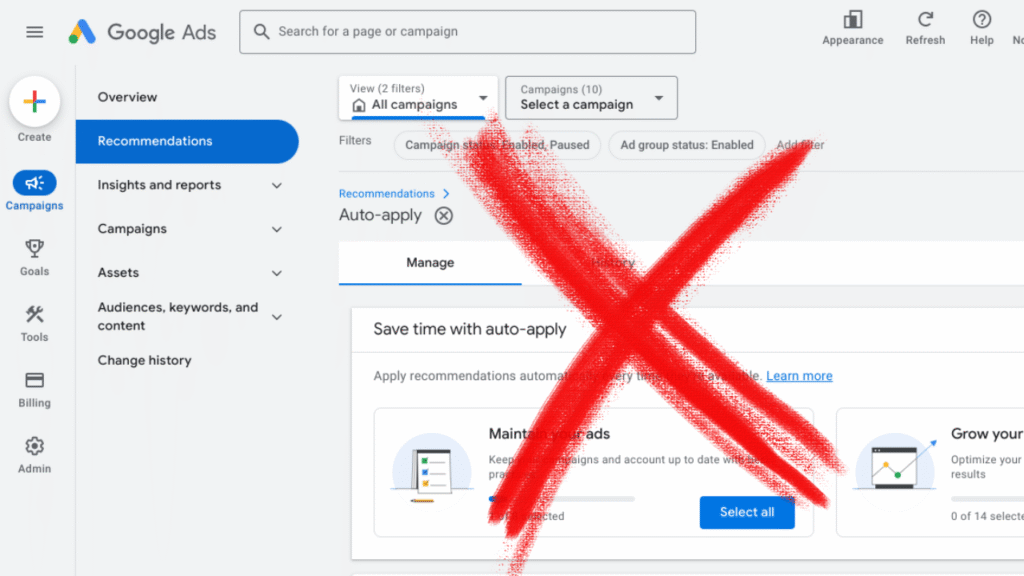
- Log into your Google Ads account
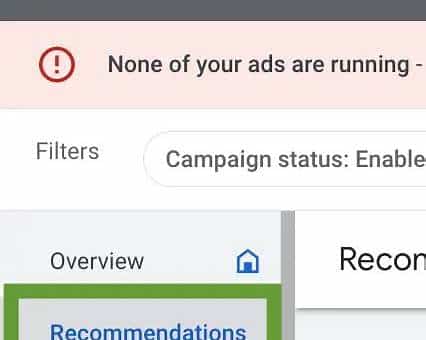
- Click Recommendations in the left-hand menu
- Select Auto-apply in the top right
- Uncheck all recommendation categories (or choose selectively)
- Click Save
That’s it. Google will no longer make automatic changes to your account.
Which Recommendations Should You Disable?
Generally safe to keep :
- Upgrade your conversion tracking to data-driven attribution
- Use optimized ad rotation (showing the best forming ads at auction)
Optional (but best done through periodic manual review):
- Remove non-serving keywords
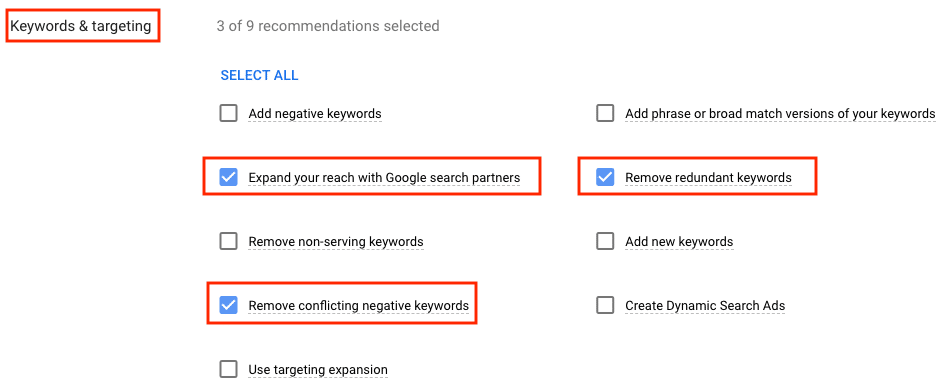
- Remove conflicting negative keywords
Usually disable:
- Add new keywords
- Broad match expansion
- Display expansion
- Automatically improve your search ads
- Remove redundant keywords:
- We have consistently seen this setting pause more efficient exact match variants of the same keyword in favor of their phrase or broad match variants, which can be quite detrimental if you are testing or running multiple keyword match types in a search campaign.
- All Bidding auto-apply recommendations
If you’re unsure what Google has already changed, check Change History or run a quick account audit before making further optimizations.
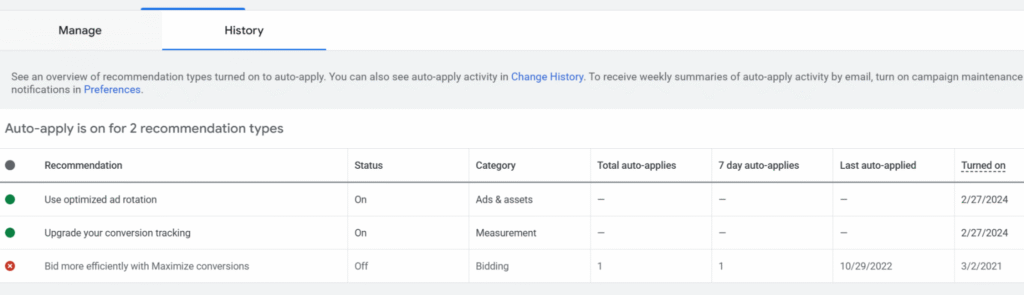
Auto-applied changes already made can be viewed in the change history at the account or campaign-levels. They can also be viewed in the history tab of the auto-applied recommendation section.
Final Takeaway
Automation should support your strategy, not override it.
Disabling auto-applied recommendations gives you back control, transparency, and predictability in your Google Ads account.
If you’re unsure what Google has already changed, check Change History or run a quick account audit before making further optimizations. Check this monthly, as Google has been known to introduce a new automation that magically gets enabled by default.
Questions?
If you have any questions or are interested in having Granular help grow your business, please use the button below to get in touch!
Related Articles